1. Who does what
Facility Management is one module with its own bar of sections across the top of every screen: Properties · Calendar · Tenancies · Arrears · Stays · Work orders · Inspections · Owner accounts · Performance · From developments · Service jobs · Service plans · Complaints · Buildings · Service charges · Facilities · Access and parking · Sales and lettings · Contracts · Settings. You will live in four or five of them.
A small company usually splits it like this:
- The coordinator (whoever answers the phone and WhatsApp) raises service jobs and complaints, books visits, and keeps customers informed.
- The supervisor assigns the technician or contractor, marks work started and done, and writes what was done.
- Accounts invoices finished work, issues service-charge bills, and pays owners out.
- The manager watches Performance, Arrears and the owner accounts, and signs off payouts and the monthly fee.
Technicians do not need a Mizo login. The office books the visit and closes the job; the technician gets the address and the work by phone or on a printed job sheet. Everything the customer sees — the quote, the status, the photos, the invoice — comes from what the office records.
The one rule that makes the rest work
Every piece of work is one of three things, and each has its own screen:
- A service job — paid work for anybody, at any address: a repaint, an AC repair, a bathroom upgrade. It carries a quote, a visit and an invoice.
- A work order — upkeep on a property you manage for an owner, paid from that owner's money, not invoiced to a customer.
- A complaint — somebody is unhappy and the clock is running. It is answered, and the fix behind it is a job or a work order.
Put the work in the right one at the start and nothing has to be moved later.
2. Set it up once
Open Facility Management → Settings. Everything in the module is off until you switch it on, so work down this list once and you will not come back to it often.
- Your services. Switch on the public service-request page, choose its address (for example
mizo.co/services/al-noor— your own words at the top), and set how long you have to answer a complaint at each priority. The default is 4 hours for urgent, 24 for high, 72 for normal, 168 for low. - Plan visits. Set how many days ahead a maintenance-contract visit should appear as a scheduled job. Seven days suits most teams.
- Messages. Switch on the WhatsApp messages you want: the owner's monthly statement, rent reminders before and after the due date, the guest check-in message, and work-order updates. Each one is off until you turn it on, and every message that goes out is listed under Messages sent.
- Accounts. If your accountant wants the month in the books, point Mizo at your client bank account, the account that holds owners' money, and the tax rate on your fee.
Then your places and people
- Buildings — add each tower or community you look after as a whole. You need each unit's area in square feet if service charges are split by size.
- Properties — add every home you manage: owner, type, size, community, and whether you run long lets, holiday stays, both, or maintenance only. Each gets a reference like
FM-00001. - Customers — anyone you do paid work for is a contact. A customer does not need to be a property you manage; an address is enough.
- Facilities — the pool, gym, BBQ area, hall or court in each building, with opening hours, slot length and how far ahead residents may book.
- Access — the doors, barriers and plate cameras, then the people and cars allowed through them.
You do not have to do all of this on day one. Buildings, properties and customers are enough to start taking jobs; facilities and access can wait until the first week is over.
3. Your day, screen by screen
Four screens carry a normal day. Open them in this order each morning.
- Service jobs. The four counts at the top are your to-do list: New requests (came in overnight from the portal or your web page), Quotes waiting for the customer (chase the old ones), Scheduled (today's visits), Done, to invoice (money waiting to be billed). Click a count to see only those jobs.
- Complaints. Anything past its deadline shows as Overdue. Deal with those first — the deadline came from the priority you gave it.
- Calendar. Who is arriving and leaving today, and which work orders are past their due date.
- Arrears. Rent due and not received, and what falls due in the next 30 days.
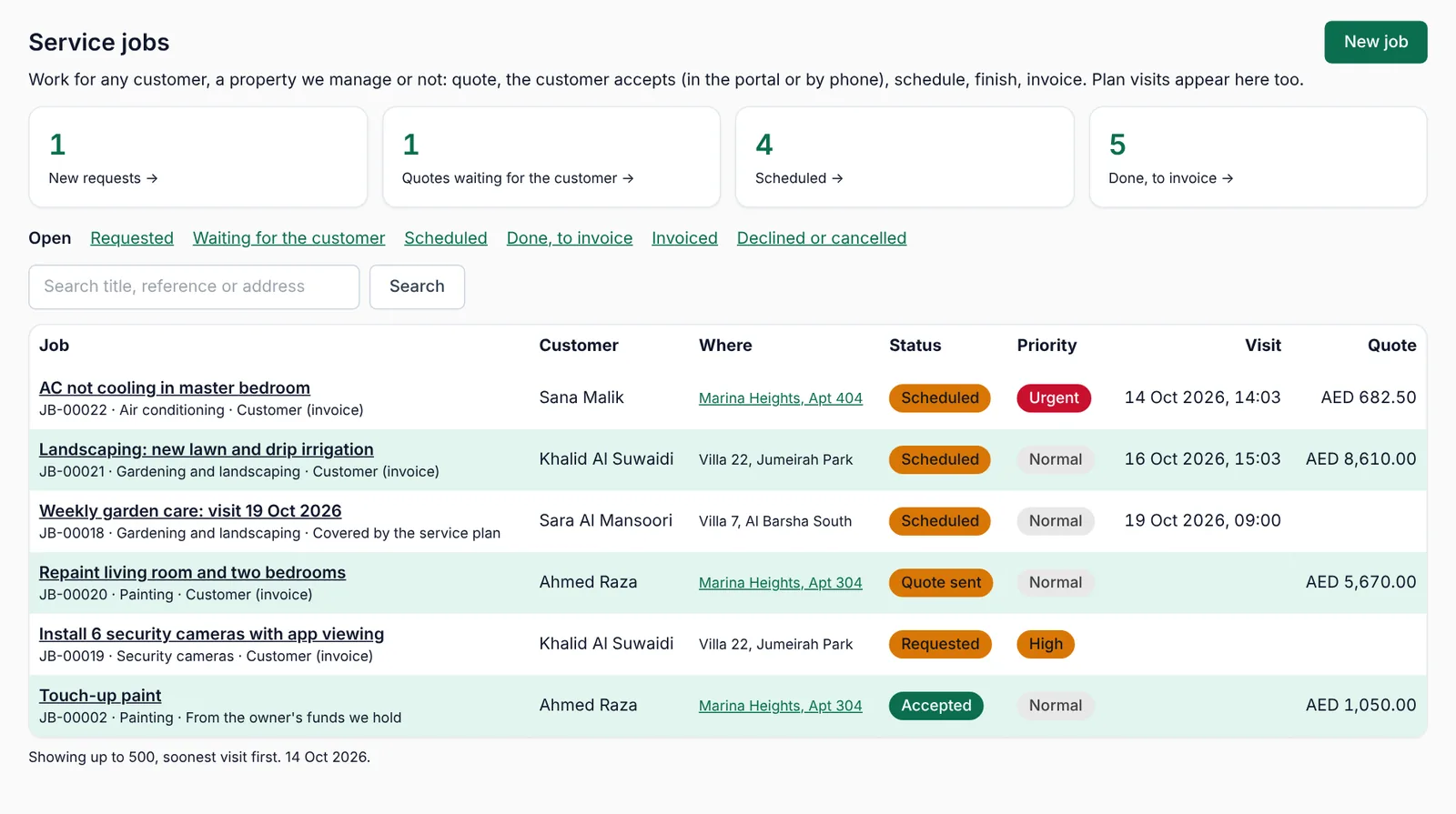
Every list in the module works the same way: the counts are links, the tabs under them filter the list, and the search box takes a title, a reference (JB-00022) or an address.
4. A job from request to invoice
This is the flow you will use most. A job moves through Requested → Quote sent → Accepted → Scheduled → In progress → Done → Invoiced, and Mizo only offers you the steps that make sense next.
Step 1 — It arrives
A job starts in one of five ways, and the job says which:
- You enter it — Service jobs → New job, when somebody phones or messages.
- The customer asks in the portal — "Ask for a service" on their phone.
- Your web page — the public request page you switched on in Settings.
- A maintenance contract — the next visit appears by itself a few days ahead.
- A complaint — you raise the job that fixes it, and the two stay linked.
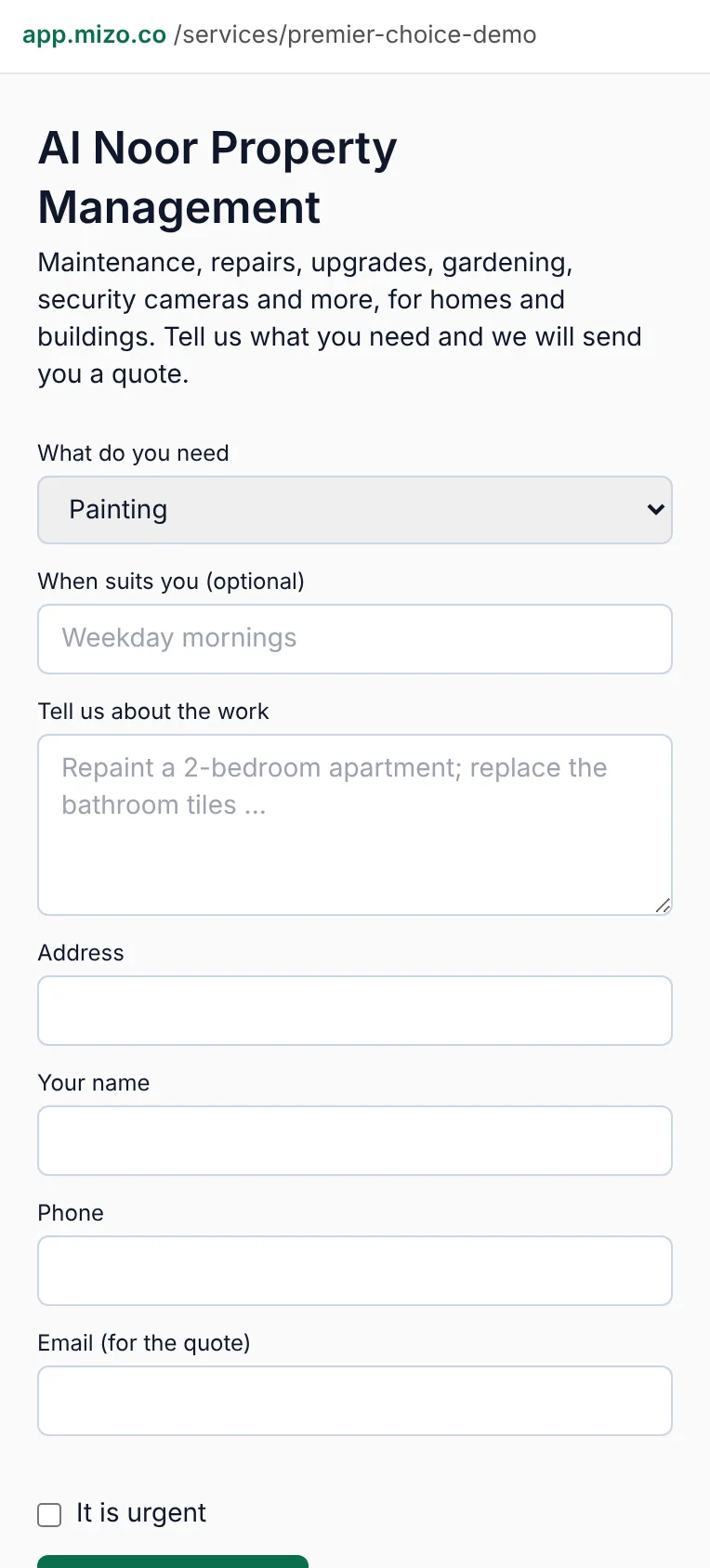
When you enter it yourself, fill in: the customer, where the work is (a property you manage, or just an address), the kind of work, a clear title, what needs doing, the priority, and who pays. That last one matters — see below.
Step 2 — Quote it
Open the job and price the work line by line in the Quote box: what, how many, unit price. Tax is added from your settings. Save the lines, set a valid until date, then Send the quote.
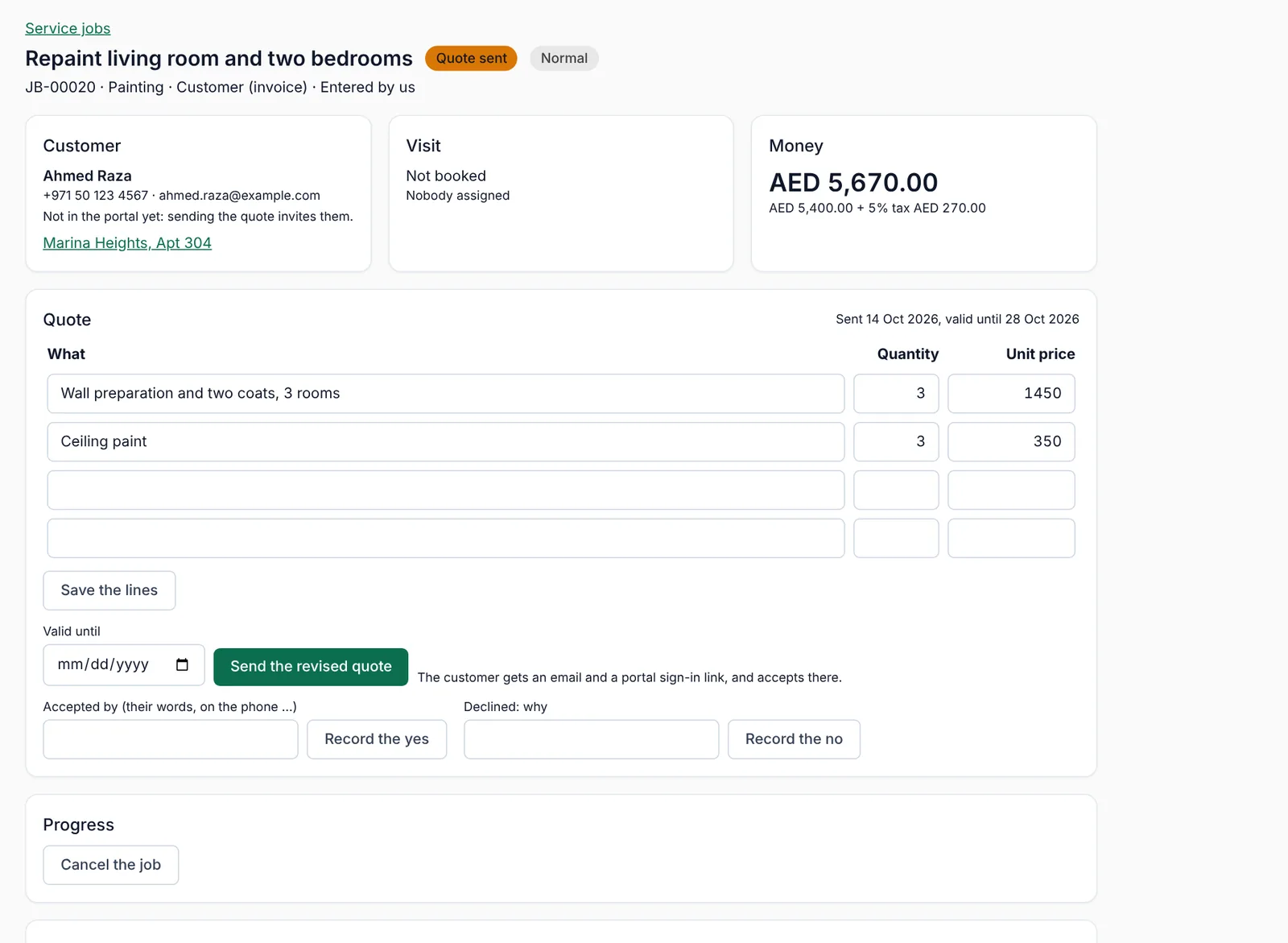
Sending the quote e-mails the customer the total and a sign-in link to their portal. If the contact has no e-mail address, Mizo tells you so: ring them and record their answer yourself.
Step 3 — They answer
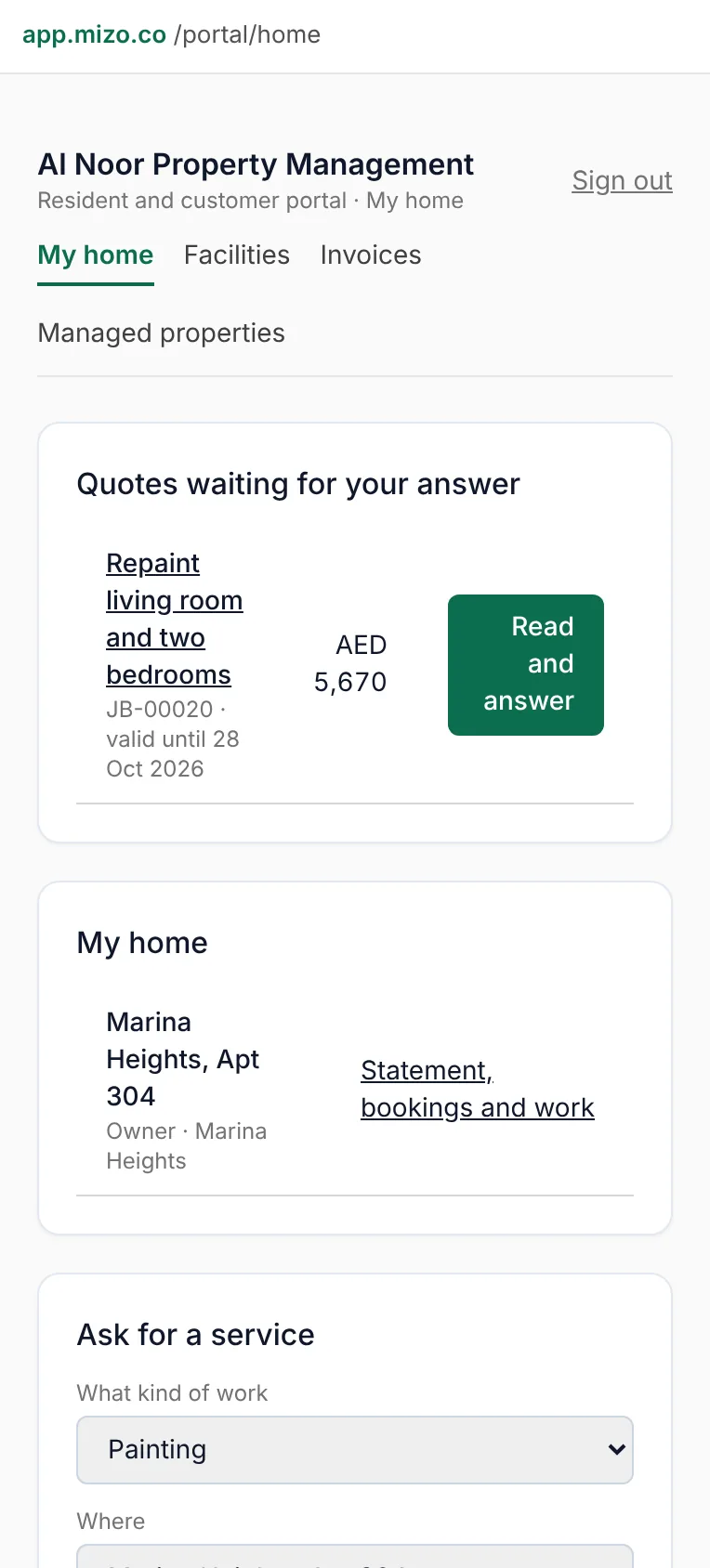
The customer reads the quote on their phone and taps accept or decline. If they tell you on the phone instead, type their words into Accepted by and press Record the yes — it is stored as their words, recorded by you, so there is no argument later. A quote past its valid-until date cannot be accepted; send a revised one.
Step 4 — Book the visit
In Visit, set the date and time and say who is going: type your technician's name, or pick a contractor from your contacts. The job moves to Scheduled and appears in the Scheduled count on the jobs screen.
Step 5 — Do the work
Press Started when the technician is on site, and Done when the work is finished. Always write what was done in the resolution box — it is what the customer sees, and what you will read in a year when they ask about the same wall. Add the before-and-after photos under Photos and documents.
Step 6 — Get paid
How the job is paid was decided when you created it:
- Customer (invoice) — when the job is Done, press Invoice the customer. Mizo makes a draft invoice in Invoicing; your accounts person checks and sends it. The job moves to Invoiced and is closed.
- From the owner's funds we hold — the cost comes off that owner's account the moment you mark the job Done, and shows on their next statement.
- Covered by the service plan — nothing to invoice; the plan is billed on its own cycle.
- Us (no charge) — goodwill or warranty work, recorded but not billed.
A job cannot be invoiced before it is Done, and it can only be invoiced once. If you need to change the price after sending the quote, send a revised quote rather than editing history.
5. Maintenance contracts (service plans)
An annual maintenance contract — quarterly AC servicing, weekly garden care, monthly pool care — is a service plan. You set it up once and Mizo does the repeating.
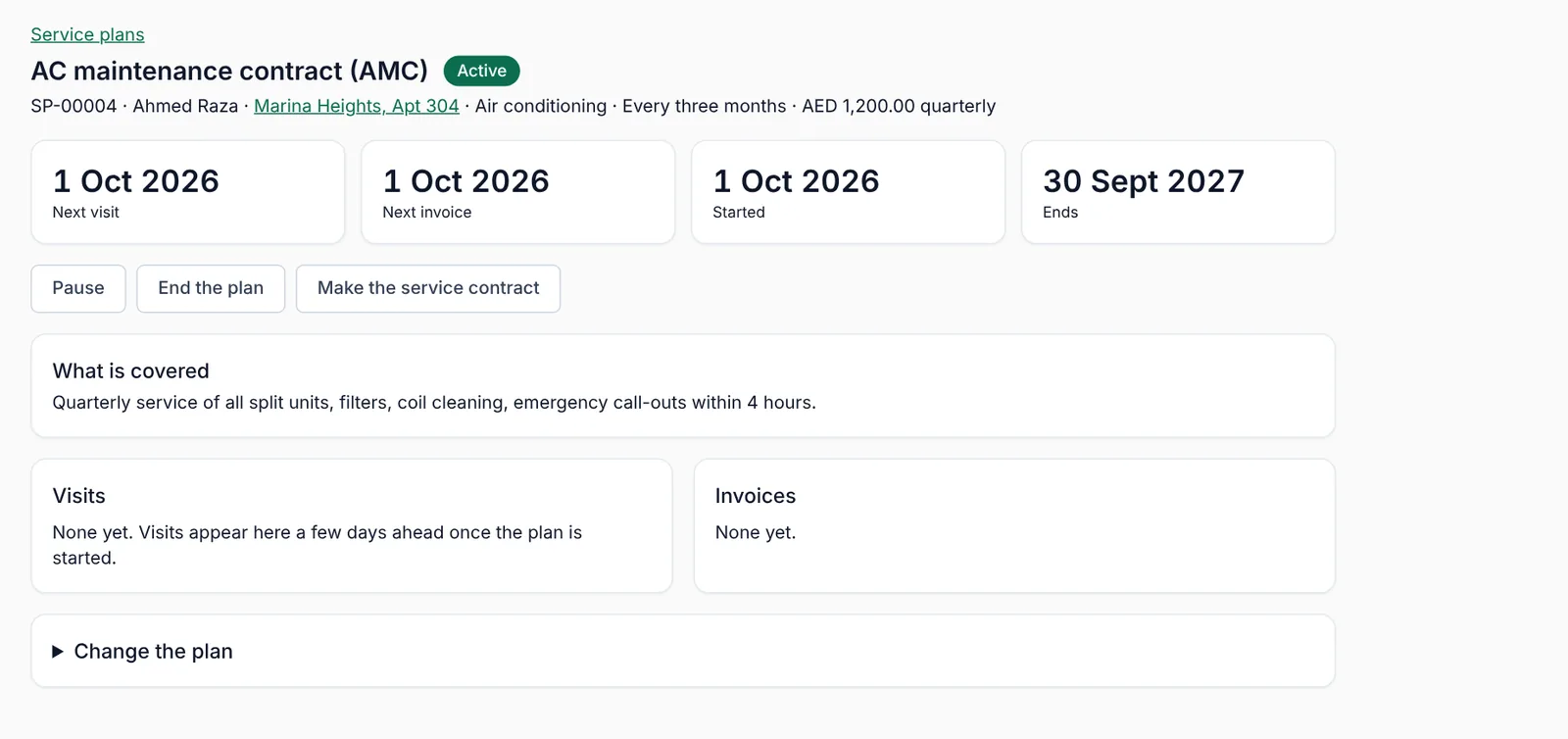
- Service plans → New plan. Customer, property or address, what the plan covers in plain words, how often you visit (weekly, fortnightly, monthly, quarterly, half-yearly, yearly), the price and how often you bill it (monthly, quarterly, half-yearly, yearly or all up front).
- Start it. A plan in Draft does nothing; Active is what makes it run.
- Each visit becomes a scheduled job a few days before it is due (the number of days is in Settings), so it lands in your normal day with everything else. Nobody has to remember it.
- Each billing period becomes a draft invoice on its own cycle, whether or not a visit happened that month.
- Pause when the customer travels; End the plan when it is over. The recurring income shown on the Service plans screen counts active plans only.
From the plan you can also press Make the service contract, which drafts the contract document for signature (see Contracts).
6. Complaints and deadlines
A complaint is not a job. It is somebody unhappy, with a clock. Log it, answer it, and link the fix to it.
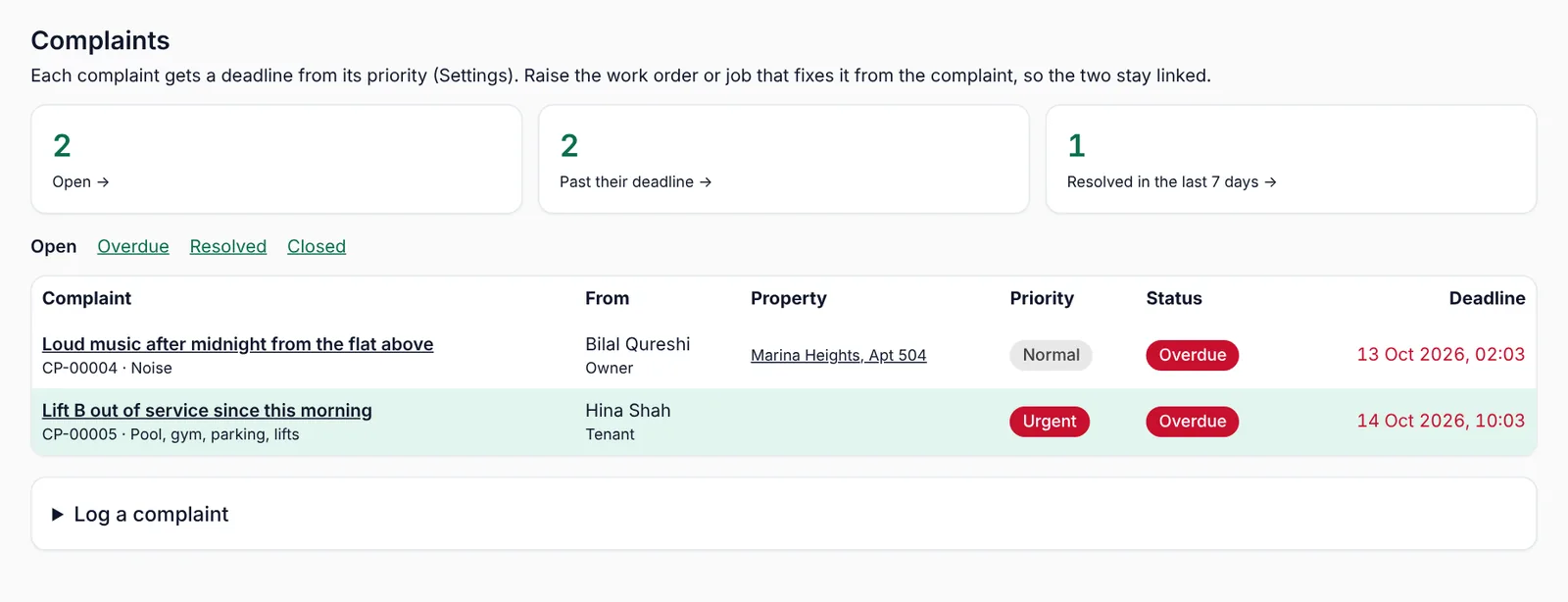
- Raise it from Complaints → New, or it arrives from a resident in the portal. Record who complained and in what role — owner, tenant, guest, customer, neighbour — and how they reached you.
- Set the priority. That sets the deadline, from your Settings (urgent 4 hours, high 24, normal 72, low 168 by default).
- Press Raise the work order or Raise the job from inside the complaint, so the fix and the complaint stay joined. Do not create a separate job by hand — you will lose the link.
- When it is sorted, write the resolution and mark it Resolved, then Closed.
Ten minutes a day on the Overdue count is the difference between a building that trusts you and one that does not.
7. Properties, tenants and owners
A property is a home you look after for its owner. Everything about it lives on one page: the owner, the agreement, the tenancies, the holiday stays, the work orders, the inspections, the documents and the owner's money.
The property's life
A property moves Prospect → Onboarding → Active → Paused → Ended. Prospects are owners you are still talking to; only Active properties count as under management. Set the service you give — long-term letting, holiday stays, both, or maintenance only — because that decides what you can book on it.
Long-term tenancies
- On the property page, add the tenancy: tenant, dates, annual rent, how many cheques, and the security deposit.
- Record each rent payment as it arrives. What is due and unpaid shows up under Arrears, with the next 30 days underneath.
- A tenancy in its last 60 days is flagged as expiring, on the property and in Tenancies. Renew it (which keeps the link to the old one) or re-let it.
- At the end, record the deposit refund, with any deductions and a note.
Holiday stays
Add stays by hand or let Airbnb and Booking.com fill them in: on the property page, create the calendar feed address and paste it into the channel, and paste the channel's calendar address back into Mizo. A property cannot be double-booked, and cannot take a stay while it is let. When a stay is finished, To owner's account puts the money — and the channel fee and cleaning — on the owner's account.
Work orders
Upkeep on a managed property is raised from the property page: what, which trade, how urgent, who is doing it, and who pays — the owner, the tenant or you. Move it Open → Assigned → In progress → Done, and on Done enter the cost and what was done. Only work marked "owner pays" reaches the owner's account.
Inspections
Use Inspections at move-in, move-out, handover, or as a routine check. Mizo gives you a checklist by area; mark each line OK, Issue or not applicable, add photos, and turn any Issue straight into a work order. Close the inspection when it is done — it is your evidence of the condition on that date.
8. The owner's account
Every owner has one running account: what you collected for them, what you spent on their behalf, your fees, and what you have paid out. The balance is worked out from those lines — it is never typed in by hand.
- In: rent, stay income, other income.
- Out: channel fees, cleaning, maintenance, utilities, service charges, your management fee, other costs, and payouts.
- Once a month, on Owner accounts, charge the management fee on every managed property in one go. It can only be charged once per property per month, so a second click cannot double-charge.
- Send the owner their statement (a PDF, by WhatsApp or e-mail) from the property's Owner statement page.
- Pay the owner what is left. A payout is blocked when the balance is zero or negative, and only someone with the right permission can make it.
- If your accountant wants it in the books, Send the month to Accounts turns the month into one draft entry for them to check.
9. Buildings and service charges
A building is a tower or community you run as a whole: its units, its budget, its facilities, its doors. Service charges start from a budget and end as an invoice to each owner.
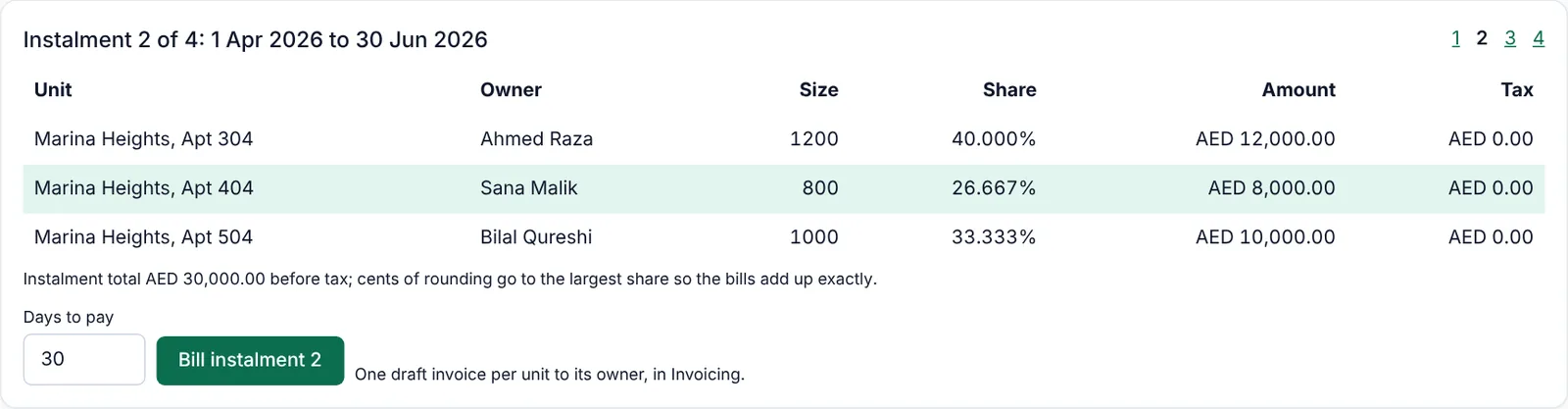
- Buildings → the building → Service-charge budgets → new year. Enter the year's costs by category: cleaning, security, MEP, lifts, fire safety, landscaping, pool and gym, utilities, insurance, management, reserve fund.
- Choose how many bills a year (1, 2, 4 or 12) and whether the cost is split by unit area or equally between units. If you split by area, every unit needs its size — Mizo stops rather than guessing a missing one.
- Approve the budget. Until it is approved, nothing can be billed from it.
- Bill an instalment. Each unit gets its share as a draft invoice to its owner, and the rounding is placed so the bills add up to the budget exactly.
- When the owner pays the invoice in Payments, the bill shows as paid. You can also pay a bill out of money you already hold for that owner.
10. When charges go unpaid
Chasing service charges is the least pleasant part of the job, so Mizo does it in a fixed, fair order that you set per building.
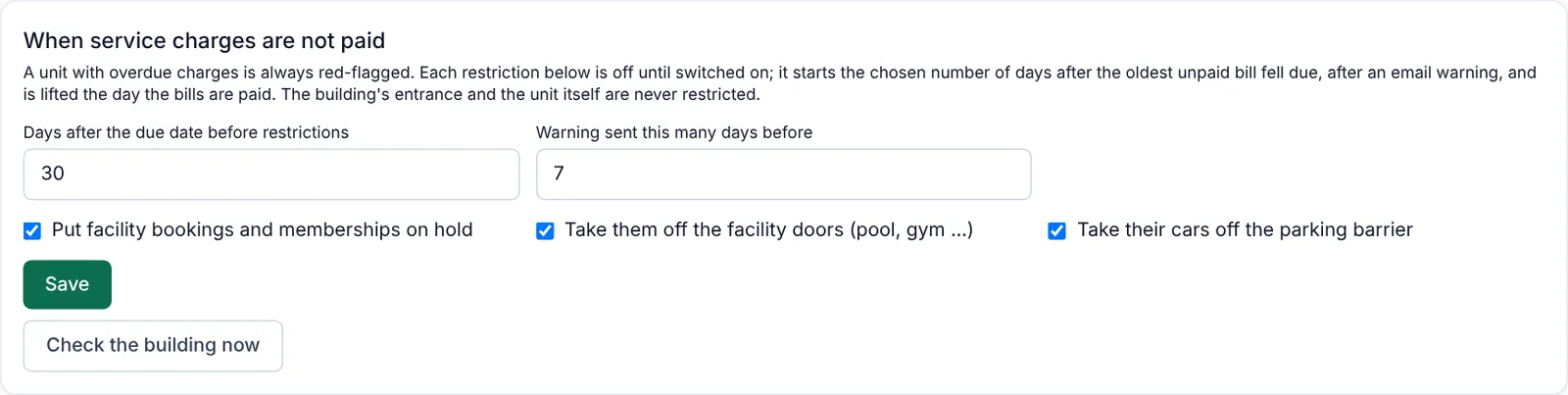
- Set the days of grace after the due date, and how many days before enforcement the owner is warned.
- Choose what stops: facility bookings, the building's shared doors, registered cars at the barrier. All three are off by default.
- The owner gets the warning e-mail first. It says plainly what will be put on hold — and that their own entrance and their home are never affected.
- When they pay, the hold is lifted by itself.
Agree this policy with the owners' association before you switch any of it on, and keep the grace period generous. The point is to be predictable, not harsh.
11. Facilities and memberships
Pool, gym, BBQ area, hall, courts: set each one up once with its hours, slot length, capacity, how far ahead people may book, and who may use it — residents only, members, or anyone.
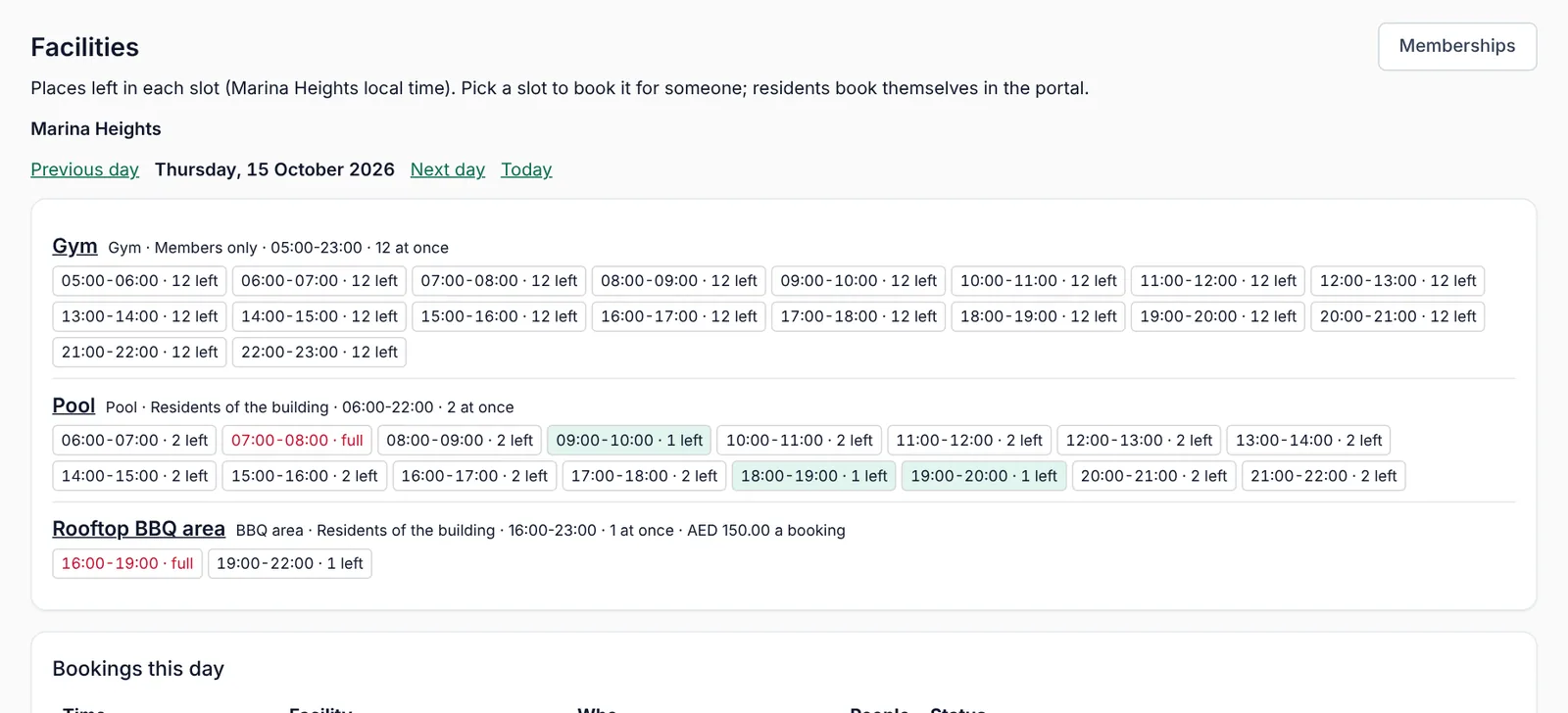
Residents book from their phone. Your desk books for the ones who ring, from the same grid. A booking fee, if you charge one, becomes an invoice.
Memberships
If outsiders use the gym or pool, sell memberships: a registration fee plus a monthly, quarterly or yearly price, covering every facility or only some.
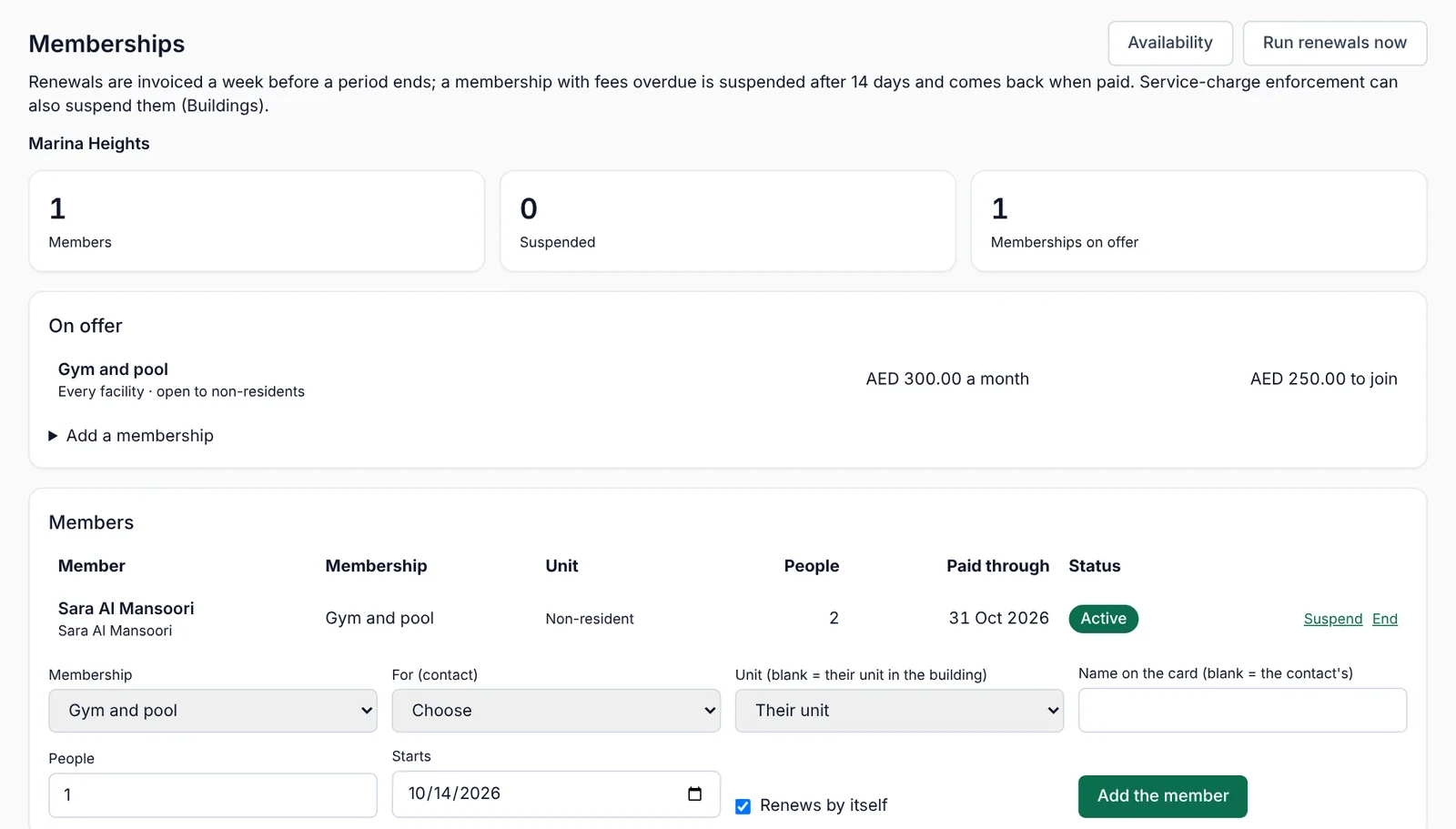
A renewal is invoiced a week before the period ends. A membership with fees overdue is suspended after fourteen days and comes back when it is paid.
12. Access, parking and visitors
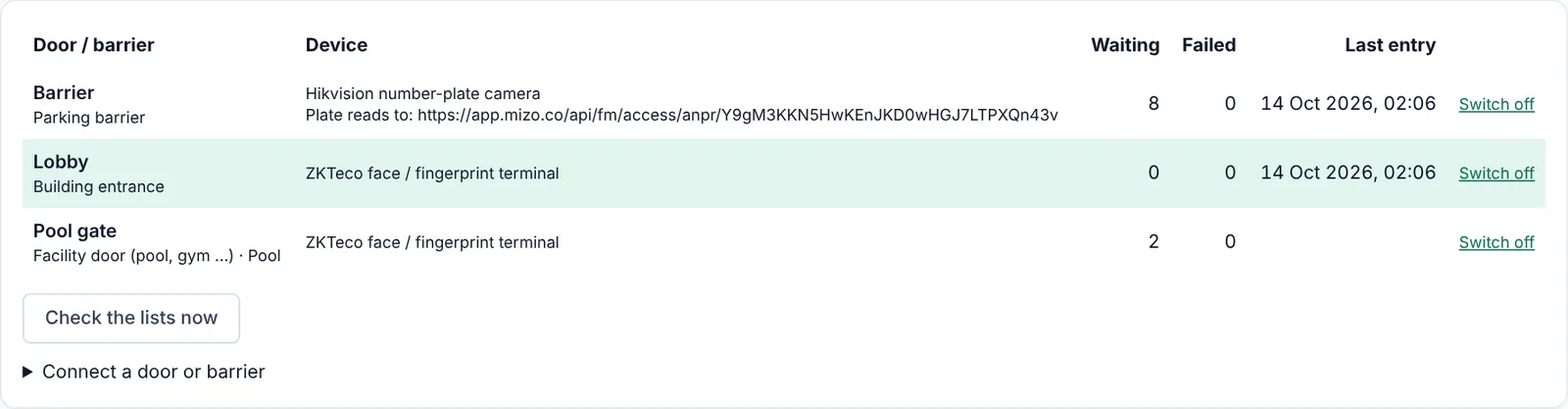
The doors, barriers and plate cameras decide on their own and keep working if the internet drops. What Mizo does is keep their lists right, and log every entry so you can answer "who came in at 2am".
People and cars
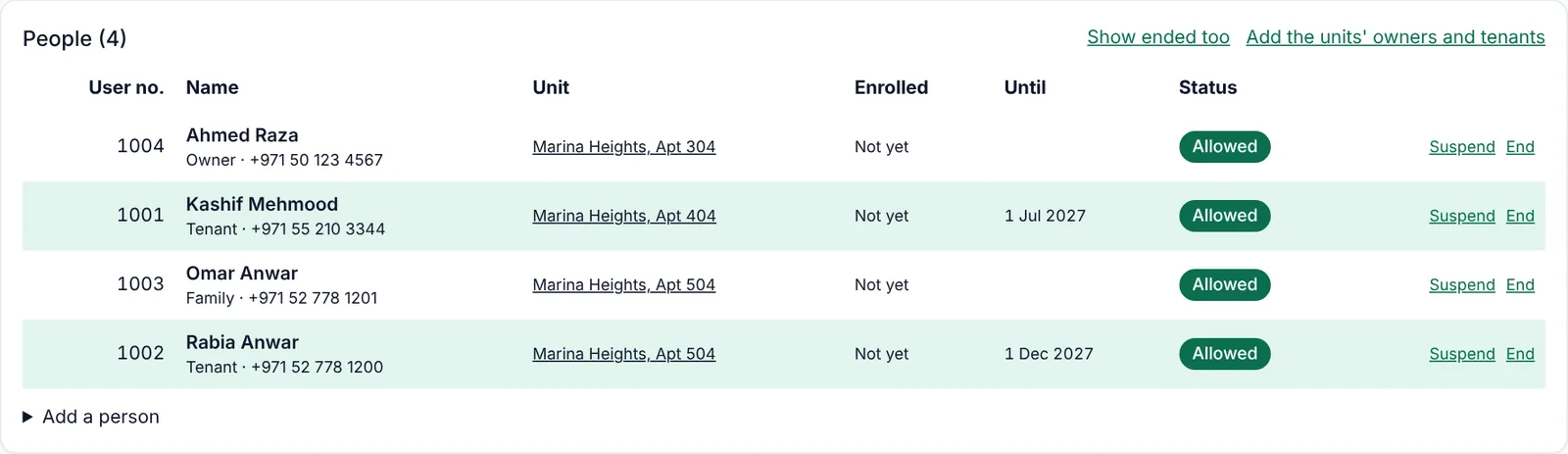
Add everyone in a unit — owner, tenant, family, helper, driver — with the dates their access is valid. Each person gets a user number on the building's door terminals; they enrol their face or finger on the terminal itself, under that number. Faces and fingerprints never leave the terminal and are never stored in Mizo. Cars are registered by plate, optionally against a parking bay.
Visitors
Residents create a visitor pass in the portal: a six-digit code, valid for a time window, optionally with a car plate. Your guard desk can check a code and open a door remotely.
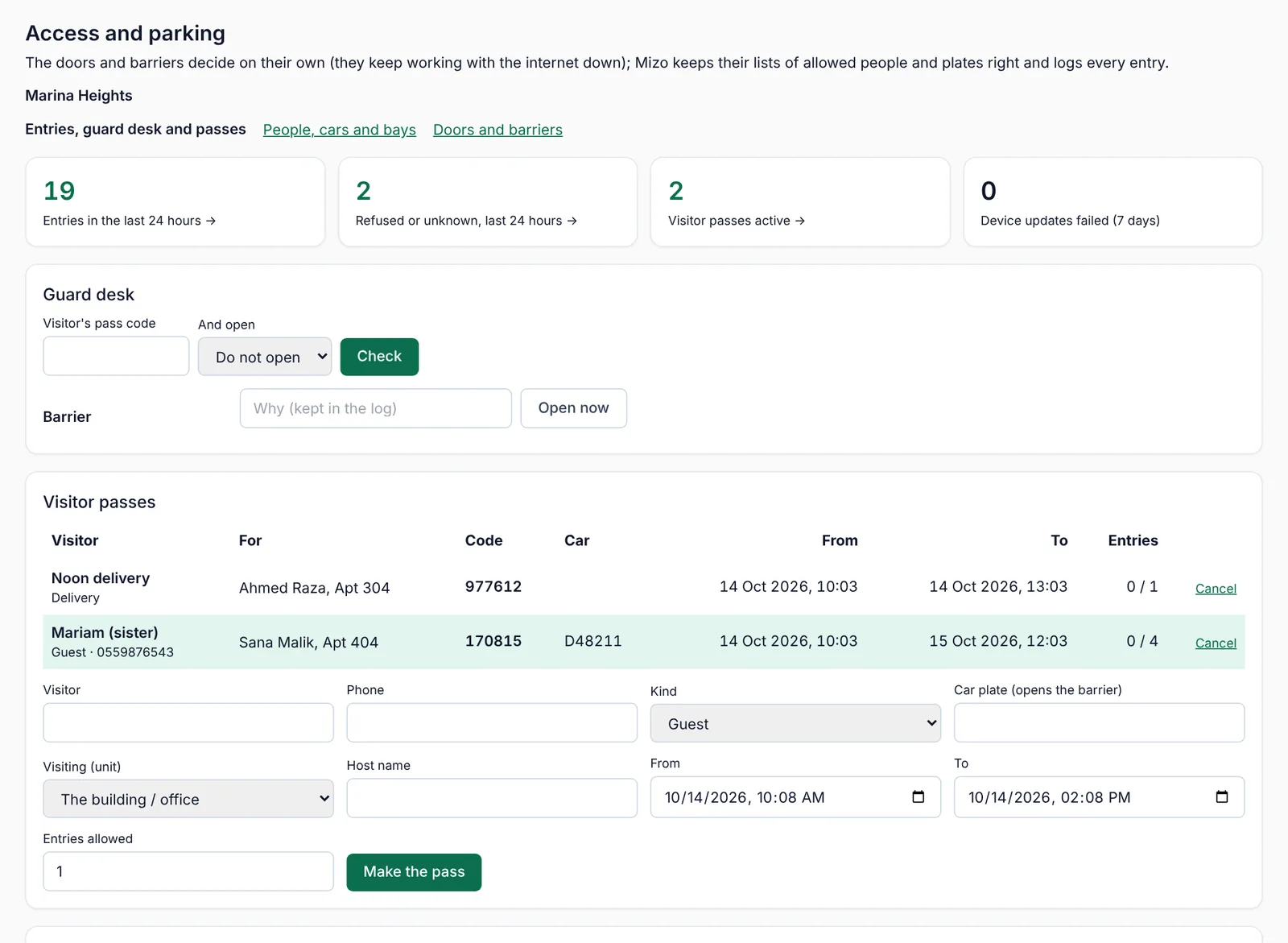
Watch Device updates failed on this screen. If a terminal has not taken its list, access for a new tenant will not work — fix it before they arrive, not after.
13. Lettings and contracts
Sales and lettings
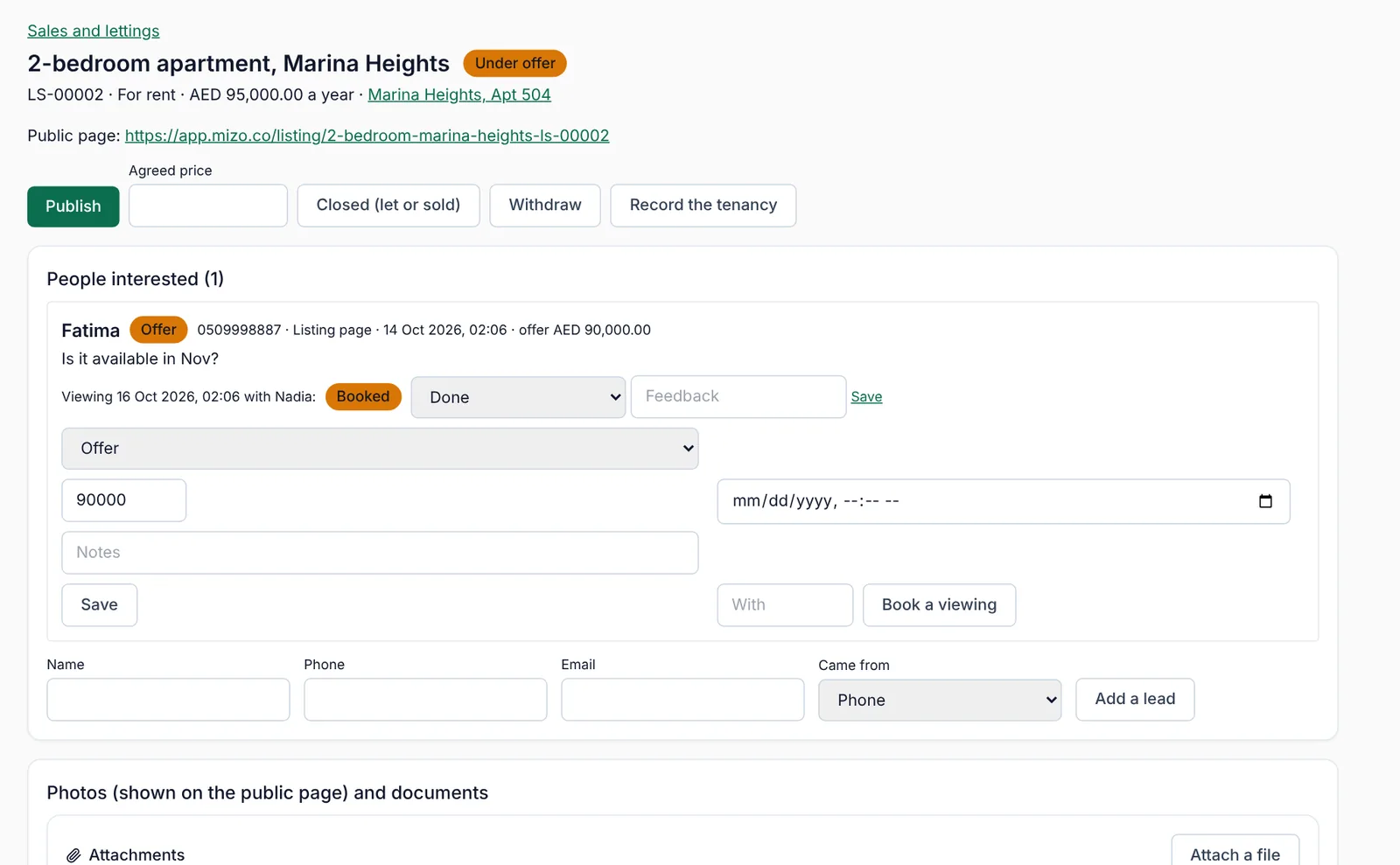
A unit to let or sell becomes a listing with its own public page. Enquiries from that page become leads here; you move each one New → Contacted → Viewing → Offer → Won or Lost, and book viewings against it. Letting one leads straight into the tenancy on the property.
Contracts
Management agreements, service contracts and tenancy contracts are drafted here, from the property, plan or tenancy they belong to. You edit the text, send it for signature by e-mail, and the signed PDF is kept with the record. The screen shows what is out for signature and what is expiring, so nothing lapses quietly.
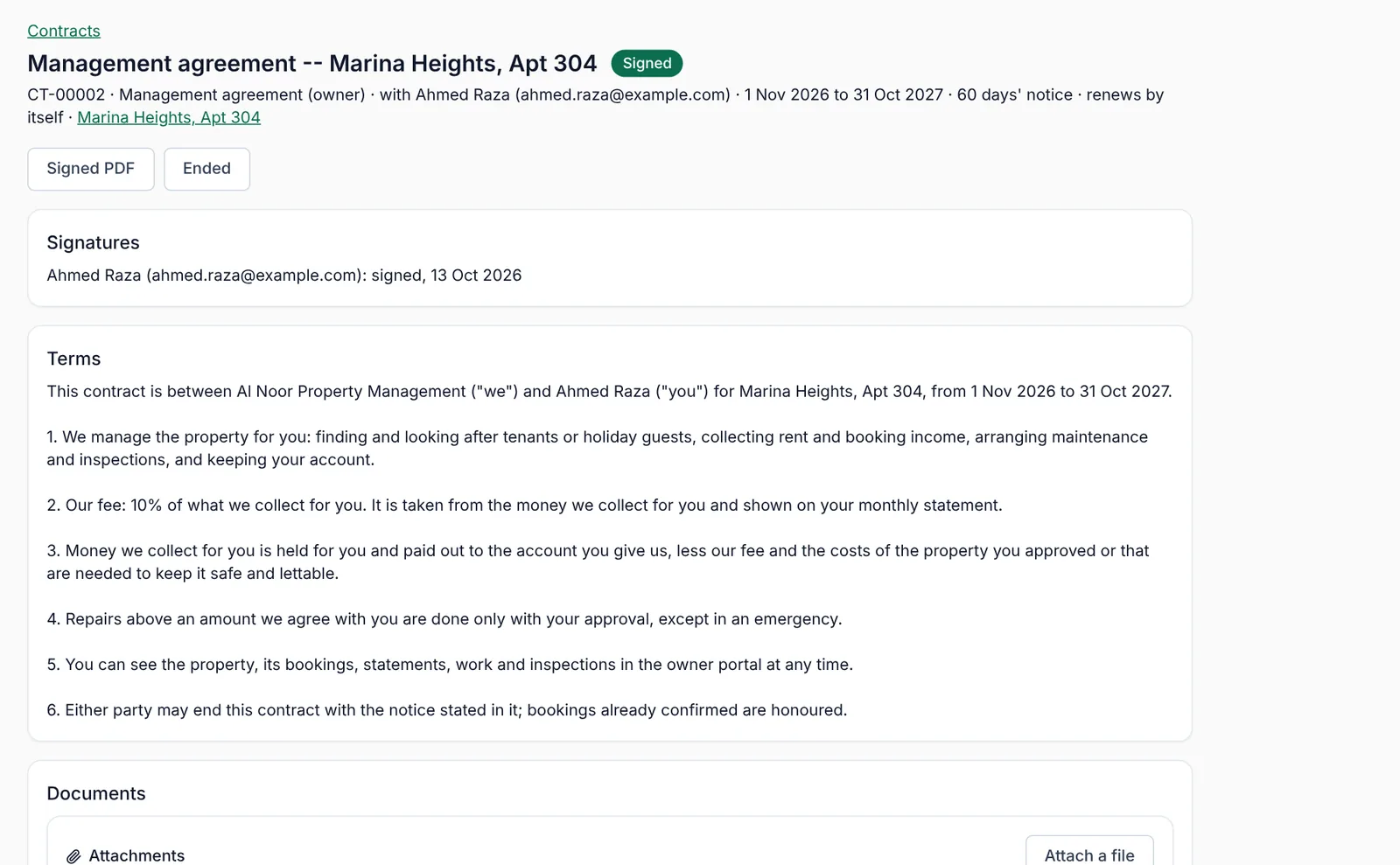
The templates are a starting point, not legal advice. Have them checked once by your lawyer, then reuse them.
14. What your customers see
Owners, tenants and service customers get one page on their phone, with no app to install. They sign in with a link you send them.
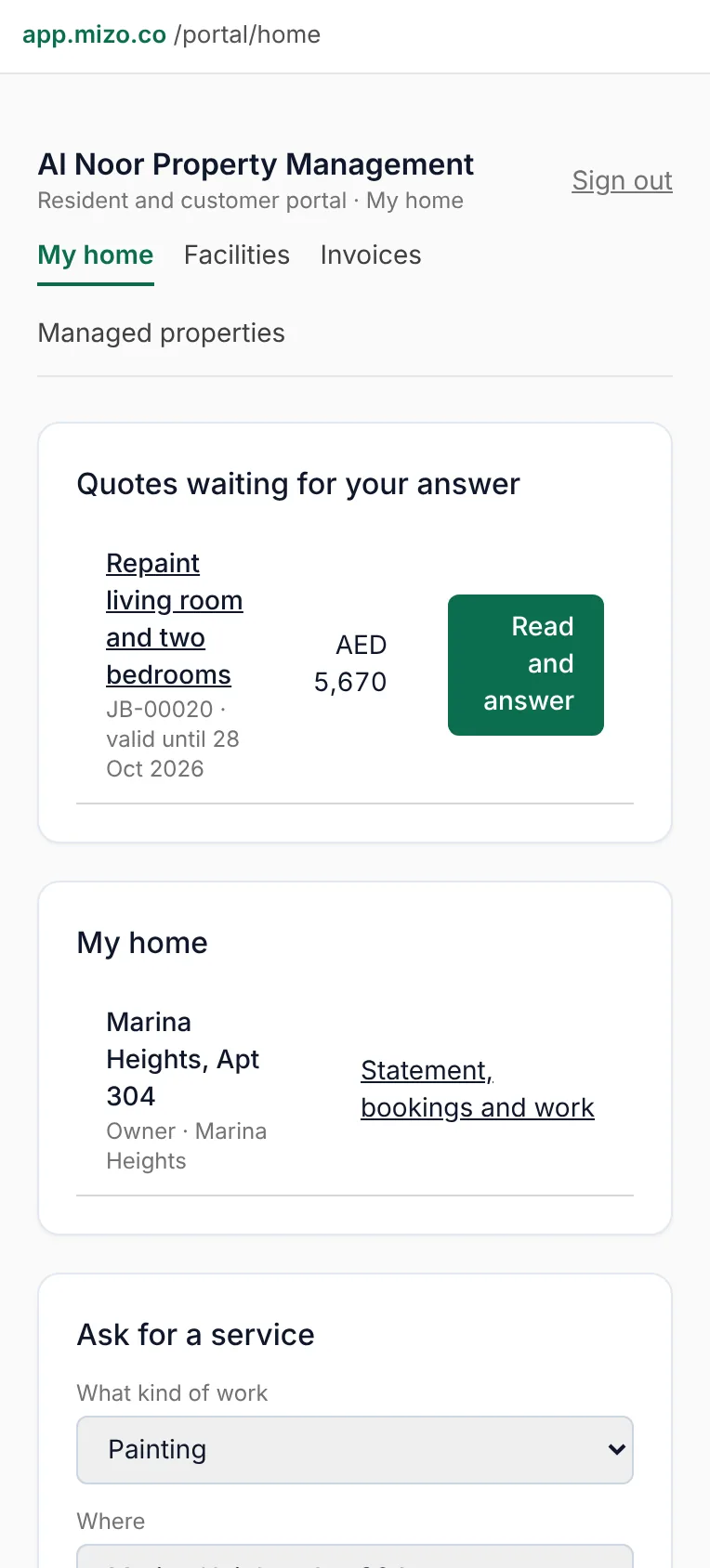
From there they can:
- answer a quote;
- ask for a service, and watch its progress;
- see their service plans and their service-charge bills and invoices;
- book a facility and join a membership;
- create a visitor pass;
- watch their cameras, if you have switched that on for them;
- raise a complaint;
- and, for owners, read their statement and the money you hold.
Invite them: an owner from the property page, a tenant from the tenancy, a customer automatically when you send them their first quote.
15. Money: invoices and accounts
Facility Management never keeps its own books. Everything it charges becomes an ordinary Mizo invoice, paid in Payments, and reaches your accounts like any other sale:
- a finished job billed to a customer;
- each service-plan billing period;
- each service-charge instalment, to the unit's owner;
- membership renewals and booking fees;
- your monthly management fee to each owner.
They all arrive as drafts, so somebody checks before it leaves the building. UAE e-invoicing, VAT and the rest work exactly as they do elsewhere in Mizo — see the main manual.
16. Who can do what
Under Settings → Users, each person gets one of three levels on Facility Management:
- View — can see everything, change nothing. Right for a guard or an owner-relations assistant.
- Edit — the day-to-day: raise jobs and complaints, quote, schedule, mark work done, book facilities, add people and cars.
- Approve — the money steps: pay an owner out, charge the monthly management fee, remove a line from an owner's account, approve a service-charge budget and bill it, and change the module's settings.
Give most of the team Edit and keep Approve for the manager and accounts. It is the simplest protection you have.
17. Your first week
A practical order of work for a company moving off spreadsheets, a notebook or another system.
- Day 1. Settings: your service page, complaint deadlines, plan lead days. Add your buildings and your first ten properties with their owners.
- Day 2. Add your customers and your live maintenance contracts as service plans, with their real next visit dates. Start them.
- Day 3. Take every open job in your notebook and enter it at the stage it is really at — quoted, accepted, scheduled. From today, nothing new goes in the notebook.
- Day 4. Invite three friendly owners and a tenant to the portal and watch what they do. Fix what confuses them before everyone gets the link.
- Day 5. Facilities and access, building by building. Check the entry log and the failed-updates count before you rely on it.
- End of the first month. Charge the management fee, send the statements, pay the owners out, and read Performance. That is the full cycle; after that it repeats.
Bringing your history across — customers, properties, contracts, open jobs — is something we can do for you. Ask at support@mizo.co before you start typing.
18. Getting help
Something is not working — support@mizo.co, or ask the assistant on this site to raise a support ticket for you. Say what you were doing, on which screen, and what happened.
You need something Mizo does not do yet — tell the assistant on this site about your workflow. It will interview you properly, write the requirements with you, and send them to our development team; you get a reference and an e-mail at every step. You can also use Request a feature inside the app.
Plans, pricing and more buildings — sales@mizo.co. Anything else — info@mizo.co or WhatsApp +971 55 854 9689.
Training for your team — we run short sessions by role (coordinator, supervisor, accounts): training@mizo.co.